
Quick Start
Requirements
- macOS 13.0 (Ventura) or later
- Administrator privileges (for initial setup and changing icons)
Installation
Homebrew (Recommended)
bash
brew install Bengerthelorf/tap/iconchangerManual Download
- Download the latest DMG from GitHub Releases.
- Open the DMG and drag IconChanger into your Applications folder.
- Launch IconChanger.
First Launch
On the first launch, IconChanger will prompt you to complete a one-time permission setup. This is required for the app to change application icons.

Click the setup button and enter your administrator password. IconChanger will automatically configure the necessary permissions (a sudoers rule for the helper script).
TIP
If the automatic setup fails, see Initial Setup for manual instructions.
Changing Your First Icon
- Select an application from the sidebar.
- Browse icons from macOSicons.com or choose a local image file.
- Click on an icon to apply it.
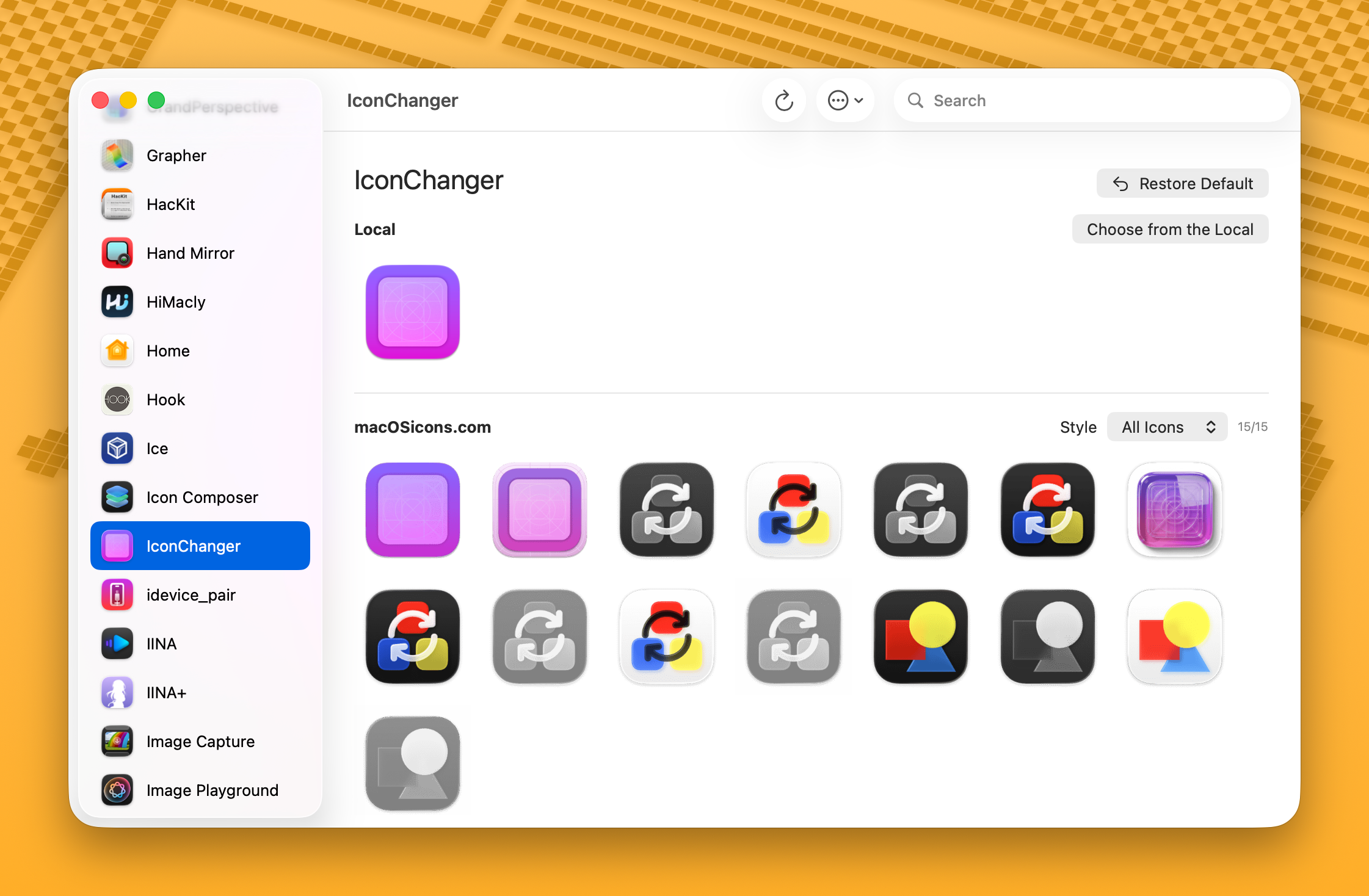
That's it! The app icon will be changed immediately.
Next Steps
- Set up an API key for online icon search
- Learn about app aliases for better search results
- Configure the background service for automatic icon restoration
- Install the CLI tool for command-line access