
Changing Icons
Using the GUI
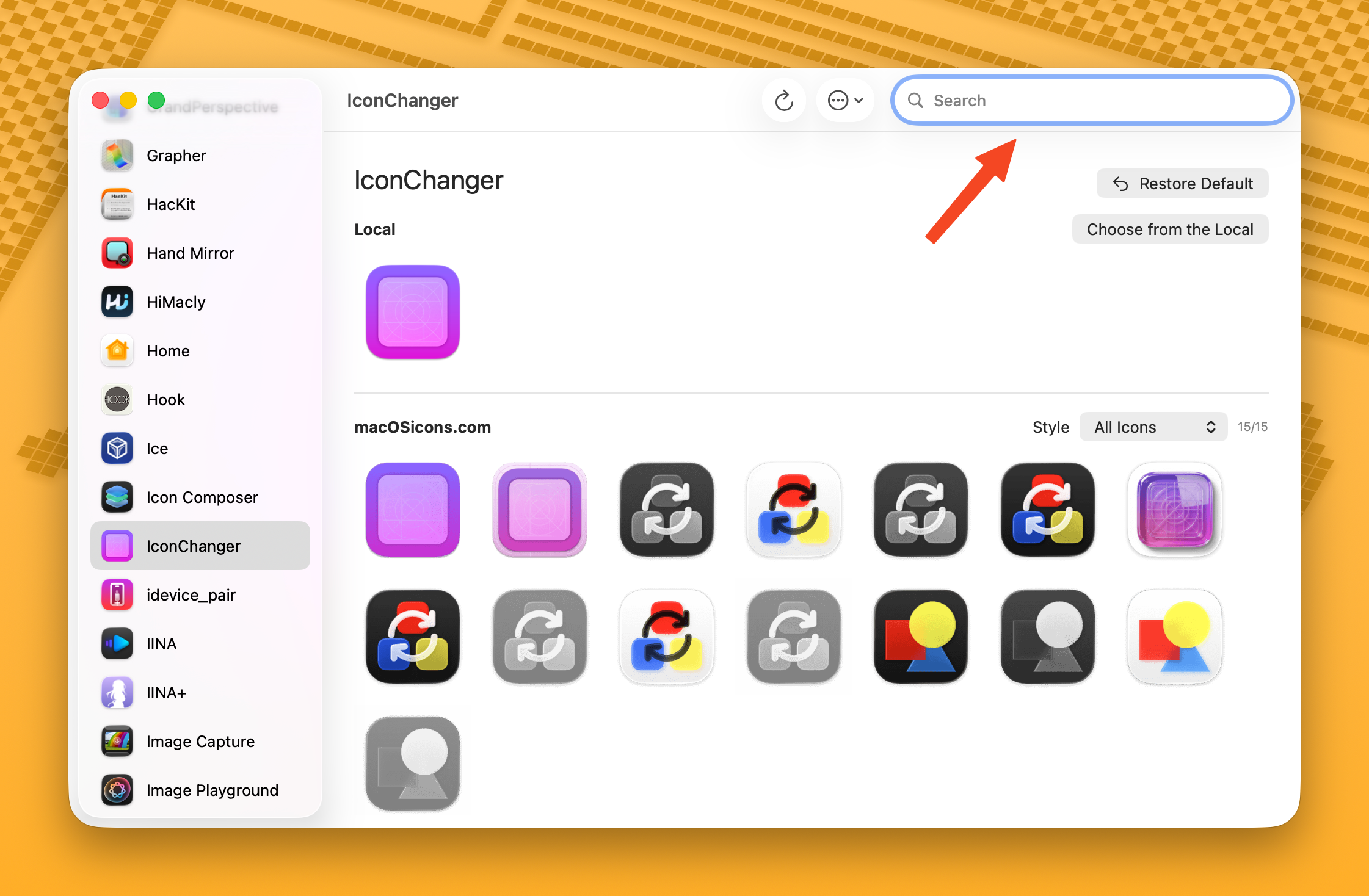
Search Online
- Select an app from the sidebar.
- Browse the icons from macOSicons.com in the main area.
- Use the Style dropdown to filter by style (e.g., Liquid Glass).
- Click an icon to apply it.
Choose a Local File
Click Choose from the Local (or press Cmd+O) to open a file picker. Supported formats: PNG, JPEG, ICNS, TIFF, HEIC, WebP, BMP, GIF, SVG.
Drag & Drop
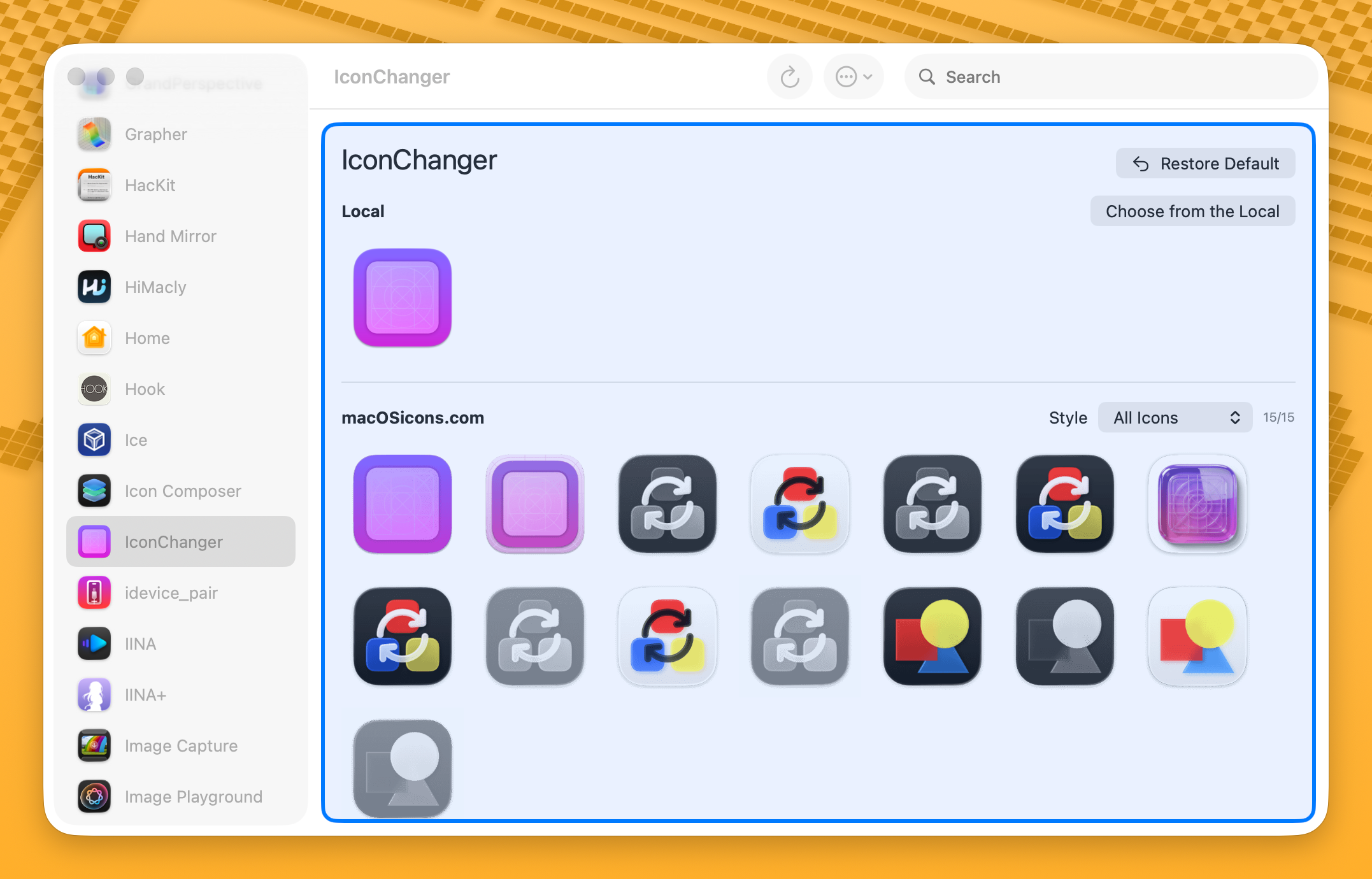
Drag an image file from Finder directly onto the app's icon area. A blue highlight will appear to confirm the drop zone.
Restore Default Icon
To restore an app's original icon:
- Click the Restore Default button (or press Cmd+Delete)
- Or right-click the app in the sidebar and select Restore Default Icon
Escape Squircle Jail (macOS Tahoe)
macOS 26 Tahoe forces all app icons into a squircle (rounded square) shape. Apps with non-conforming icons get shrunk and placed on a gray squircle background.
IconChanger can fix this by re-applying an app's own bundled icon as a custom icon, which bypasses macOS's squircle enforcement.
Per App
Right-click an app in the sidebar and select Escape Squircle Jail.
All Apps at Once
Click the ⋯ menu in the toolbar and select Escape Squircle Jail (All Apps). This processes all apps that don't already have custom icons.
TIP
Custom icons set this way do not support macOS Tahoe's Clear, Tinted, or Dark icon modes — they remain static. This is a system limitation.
INFO
Your background service will automatically re-apply icons after app updates, keeping them out of squircle jail.
Folder Icons
You can also customize folder icons. Add folders via Settings > Application > Application Folders, or click the + button in the sidebar's folder section.
Once a folder is added, it appears in the sidebar just like apps. You can search for icons, drag & drop images, or choose local files — the same workflow as changing app icons.
TIP
Folder names like "go" or "Downloads" may not return great search results from macOSicons.com. Use aliases to set a more search-friendly name (e.g., alias "Documents" to "folder").
Icon Caching
When you apply a custom icon, it is automatically cached. This means:
- Your custom icons can be restored after app updates
- The background service can reapply them on a schedule
- You can export and import your icon configurations
Manage cached icons in Settings > Icon Cache.
Keyboard Shortcuts
| Shortcut | Action |
|---|---|
| Cmd+O | Choose a local icon file |
| Cmd+Delete | Restore default icon |
| Cmd+R | Refresh icon display |
Tips
- If no icons are found for an app, try setting an alias with a simpler name.
- The counter (e.g., "12/15") shows how many icons loaded successfully out of the total found.
- Icons are sorted by popularity (download count) by default.