
TUI Guide
Launch with pikpaktui (no arguments). On first run a login form appears. After login, you're in the three-column file browser. Press h for the built-in help sheet, , for settings.
File Browser
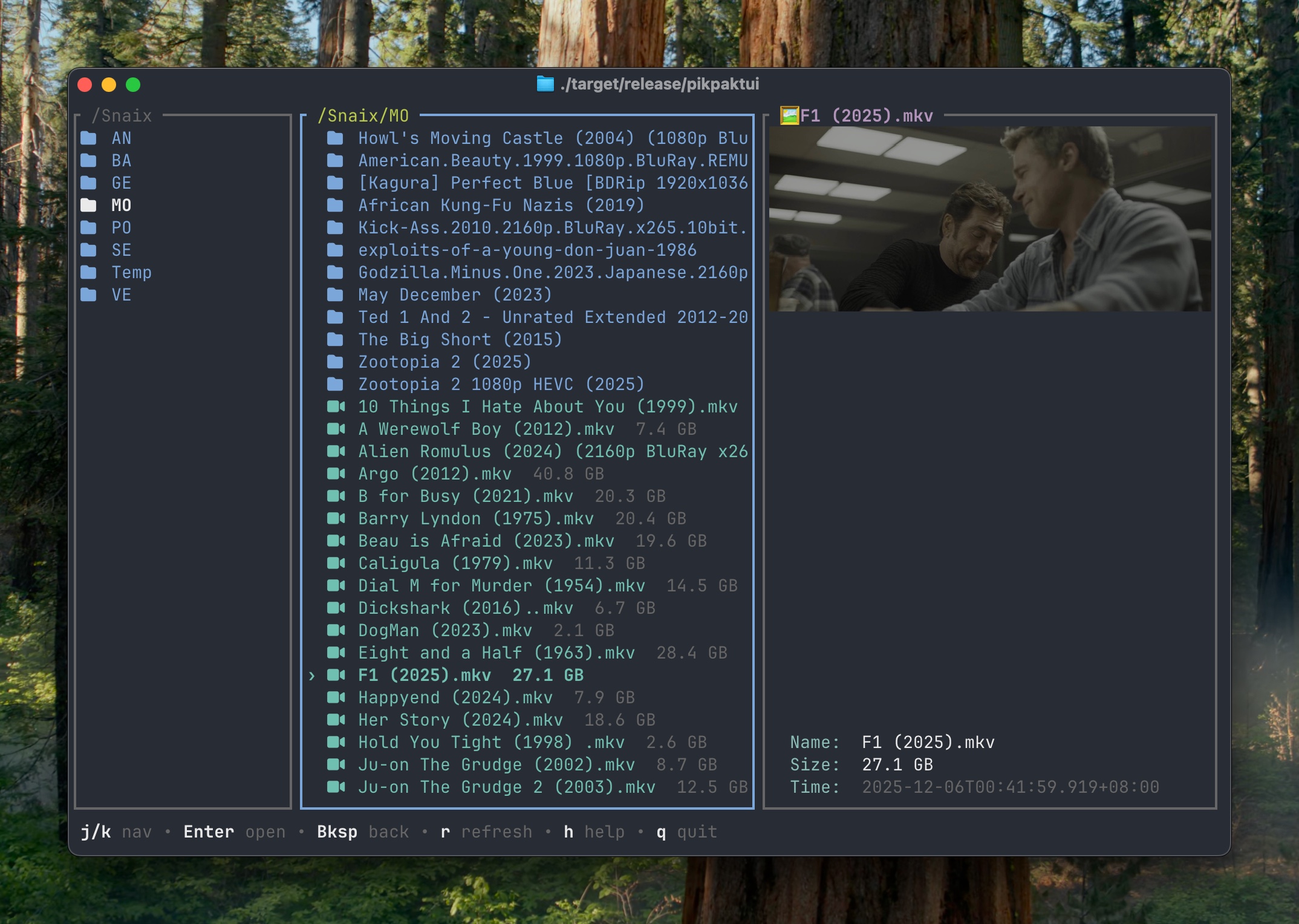
The main view. Left pane = parent, center = current directory, right = preview.
| Key | Action |
|---|---|
j / k / ↑ / ↓ | Navigate up/down |
g / Home | Jump to top |
G / End | Jump to bottom |
PageUp / PageDown | Page scroll |
Ctrl+U / Ctrl+D | Half-page scroll |
Enter | Open folder / play video (auto-opens quality picker) |
Backspace | Go to parent directory |
w | Stream video — opens quality/resolution picker |
r | Refresh current directory |
m | Move (opens folder picker or text input, per move_mode setting) |
c | Copy |
n | Rename (opens inline text input) |
d | Delete — prompts for confirmation |
f | New folder (opens inline text input) |
s | Star / unstar current file |
y | Copy direct download URL to clipboard (files only) |
u | Upload a local file to the current folder |
a | Toggle current item in/out of cart |
S | Cycle sort field: name → size → created → type → extension → none |
R | Toggle reverse sort order |
A | Open cart view |
D | Open downloads view |
M | Open my shares view |
o | Offline download — enter URL or magnet link |
O | Offline tasks view |
t | Trash view |
Space | File/folder info popup |
p | Preview file content (text preview / fetch listing) |
l | Toggle log overlay |
: | Go to path — type a cloud path and press Enter |
, | Settings panel |
h | Help sheet (any key to close) |
q | Quit (confirms if downloads are active) |
Ctrl+C | Quit (confirms if downloads are active) |
Delete confirmation
Pressing d opens a confirmation prompt:
y— move to trash (recoverable)p— opens a second prompt asking you to typeyesand press Enter for permanent deletionn/Esc— cancel
Folder Picker (Move / Copy)
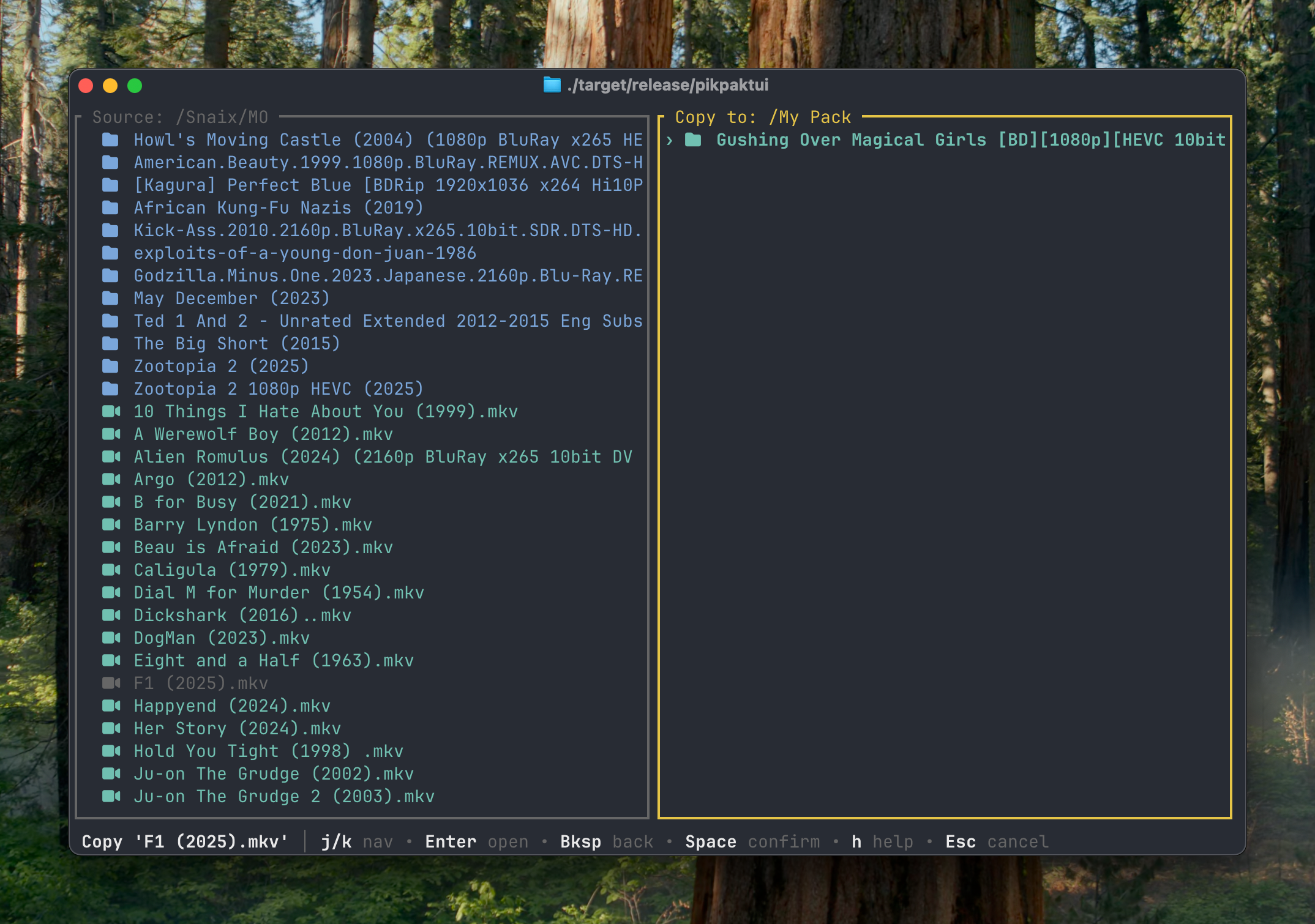
Appears when move_mode = "picker" (default). A two-pane folder navigator.
| Key | Action |
|---|---|
j / k | Navigate folders |
Enter | Open folder |
Backspace | Go to parent |
Space | Confirm destination |
/ | Switch to text input mode |
Esc | Cancel |
Text Input (Move / Copy)
Active when move_mode = "input" or when you press / in the picker.
| Key | Action |
|---|---|
Tab | Autocomplete cloud path |
Enter | Select completion / confirm destination |
Ctrl+B | Switch back to folder picker |
Esc | Close completions / cancel |
Cart View
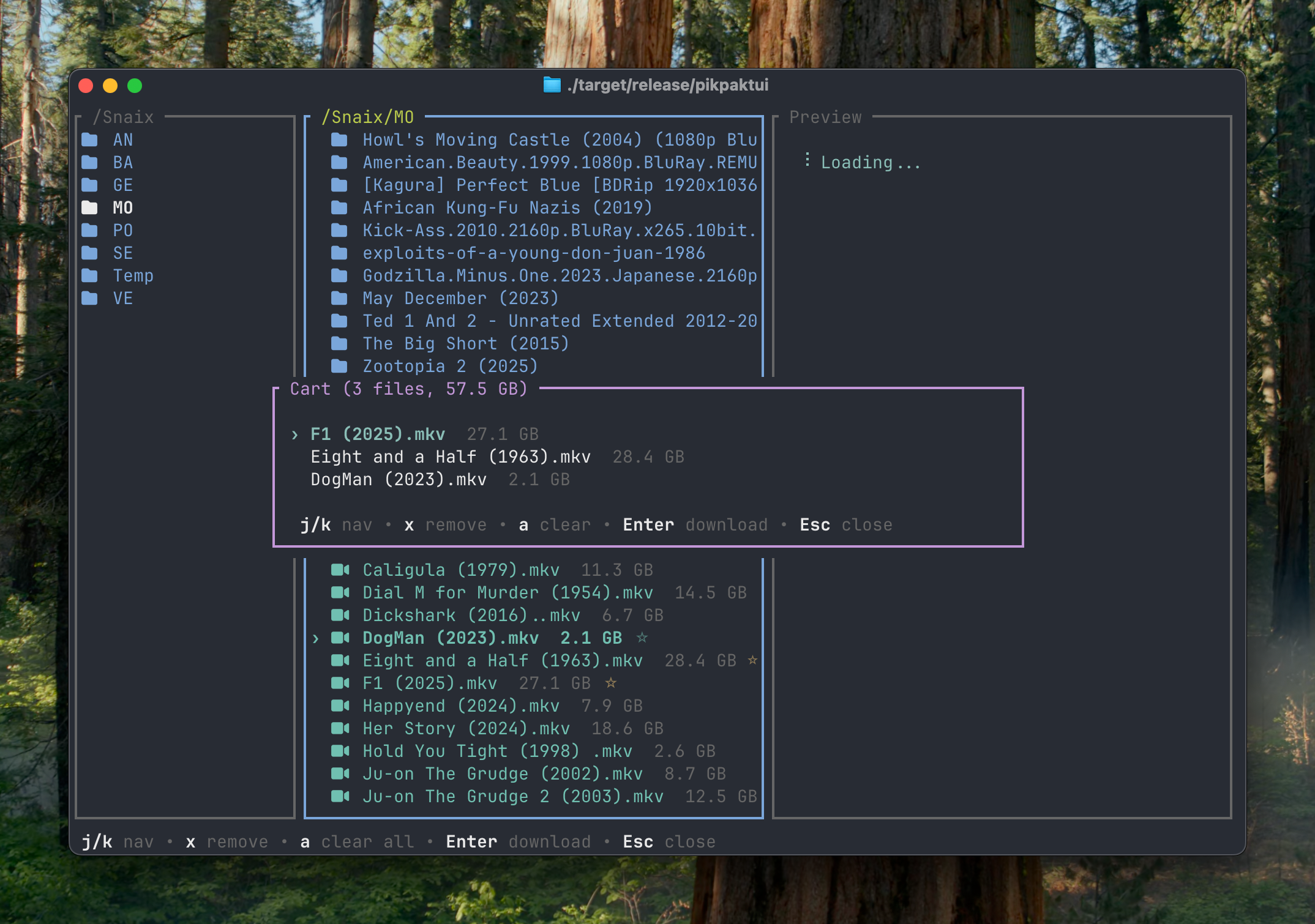
Add multiple files with a, then batch-download, move, copy, or share them all at once.
| Key | Action |
|---|---|
j / k | Navigate |
x / d | Remove selected item from cart |
a | Clear all items |
Enter | Download all — prompts for local destination |
m | Move all items (folder picker) |
c | Copy all items (folder picker) |
t | Trash all items |
s | Share all items (prompts: p = plain link, P = password-protected) |
S | Share all (plain link, no prompt) |
Esc | Close cart view |
Download View
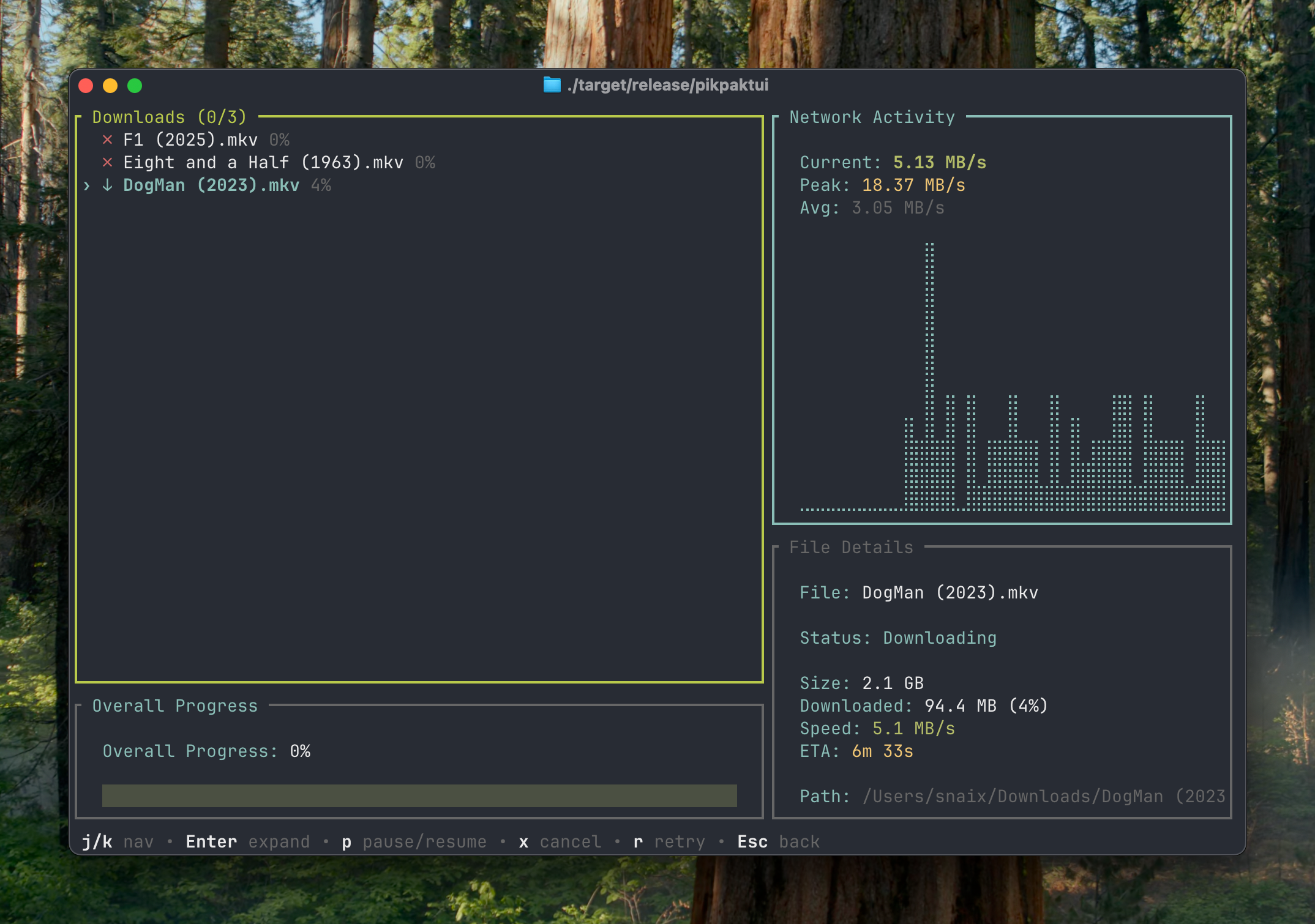
Press D to open the download manager. Active downloads show progress in real time.
| Key | Action |
|---|---|
j / k | Navigate tasks |
Enter | Toggle collapsed / expanded view |
p | Pause / resume selected task |
x | Cancel and remove selected task |
r | Retry a failed task |
Esc | Close (downloads continue in background) |
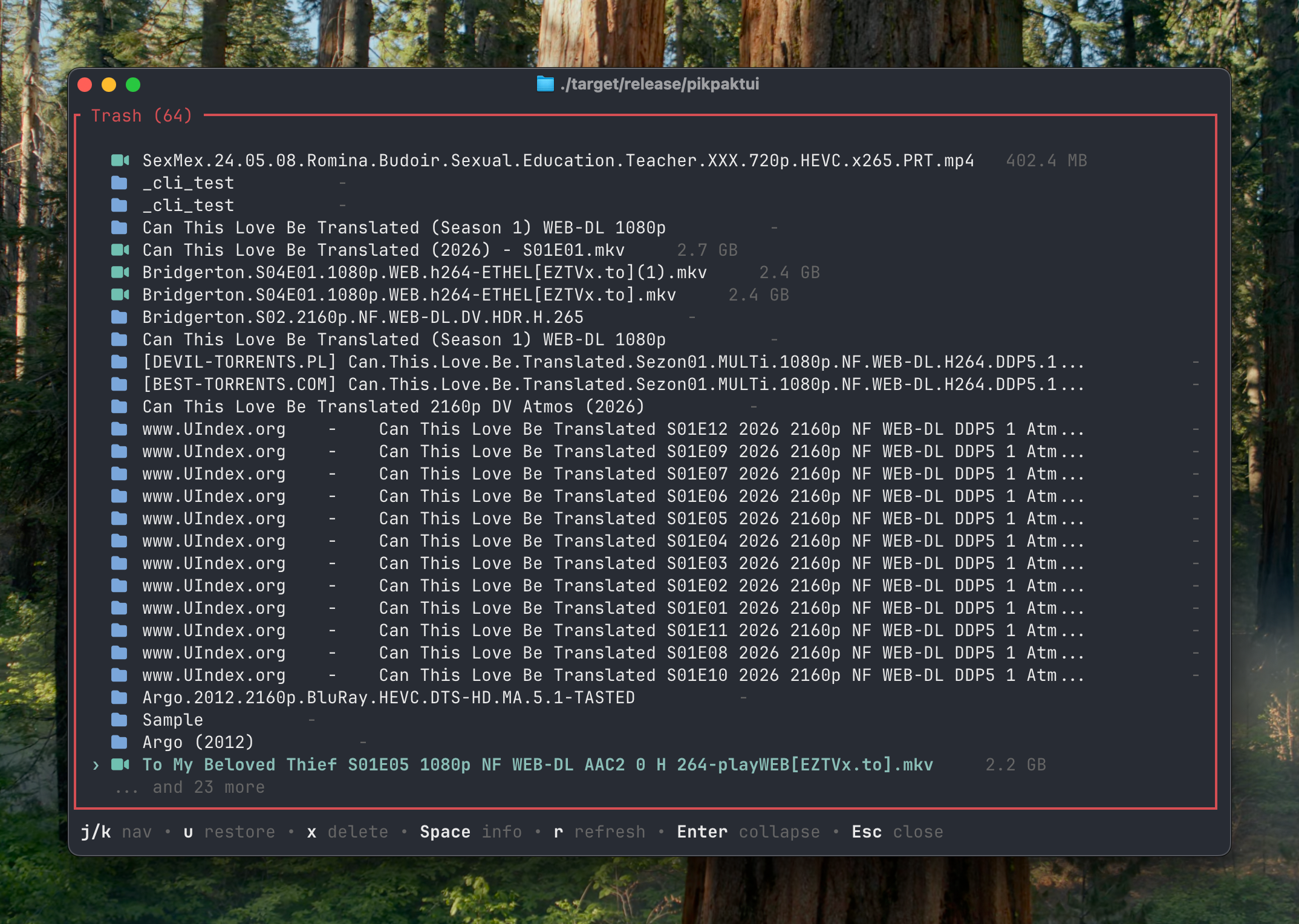
Trash View
Press t to open the trash. Files deleted with d → y land here.
| Key | Action |
|---|---|
j / k | Navigate |
Enter | Toggle collapsed / expanded |
u | Restore (untrash) selected item |
x | Permanently delete selected item |
Space | Show file info popup |
r | Refresh trash listing |
Esc | Close (or collapse expanded view) |
Offline Tasks View
Press O to view server-side download tasks.
| Key | Action |
|---|---|
j / k | Navigate |
r | Refresh task list |
R | Retry selected failed task |
x | Delete selected task |
Esc | Close |
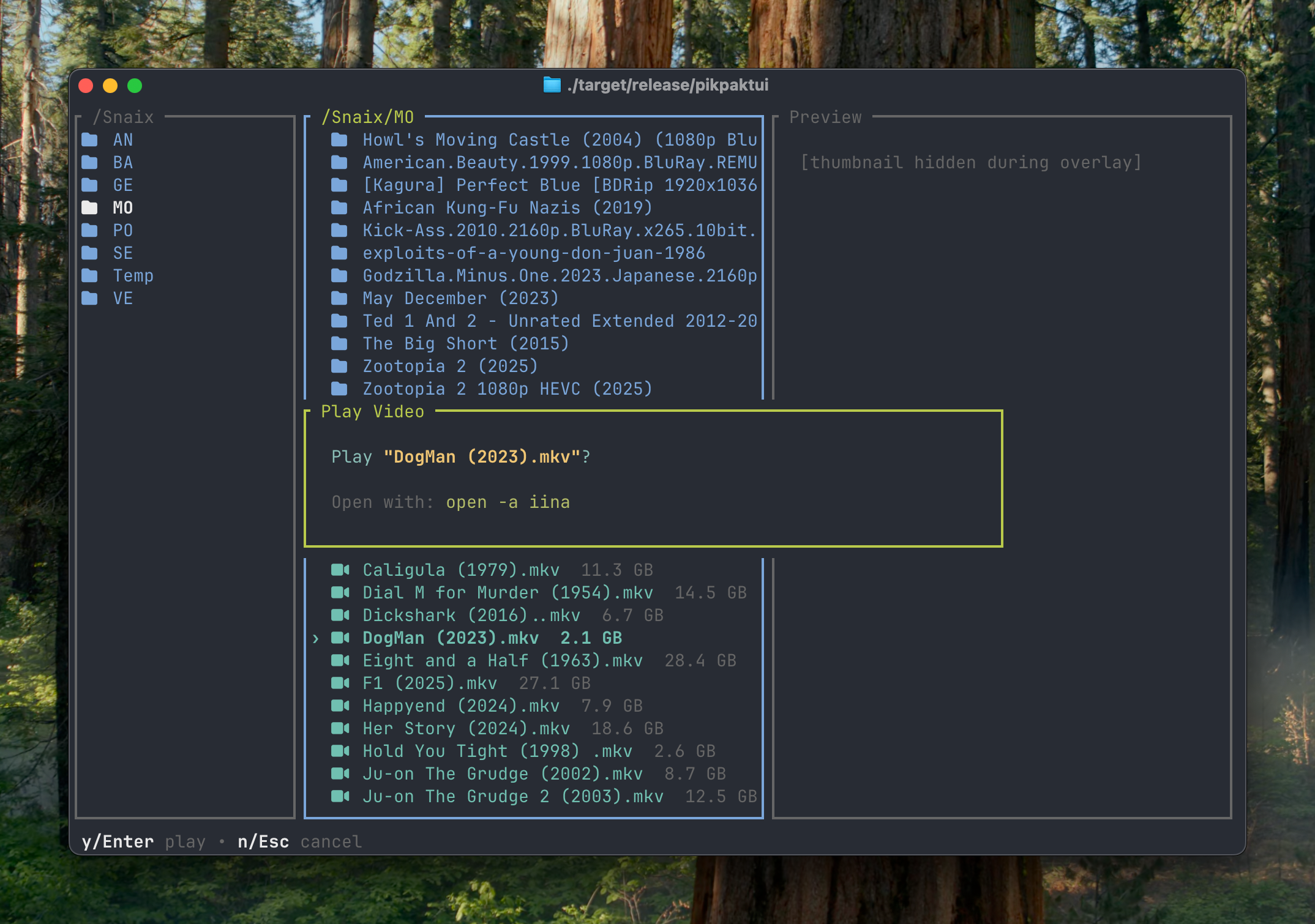
Video Quality Picker
Appears when you press Enter on a video file or use w for explicit stream selection.
| Key | Action |
|---|---|
j / k | Navigate quality options |
Enter | Play selected quality with configured player |
Esc | Cancel |
Player setup
If no player is configured, pikpaktui will prompt you to enter a player command (e.g. mpv, vlc, iina). The command is saved to config.toml for future use.
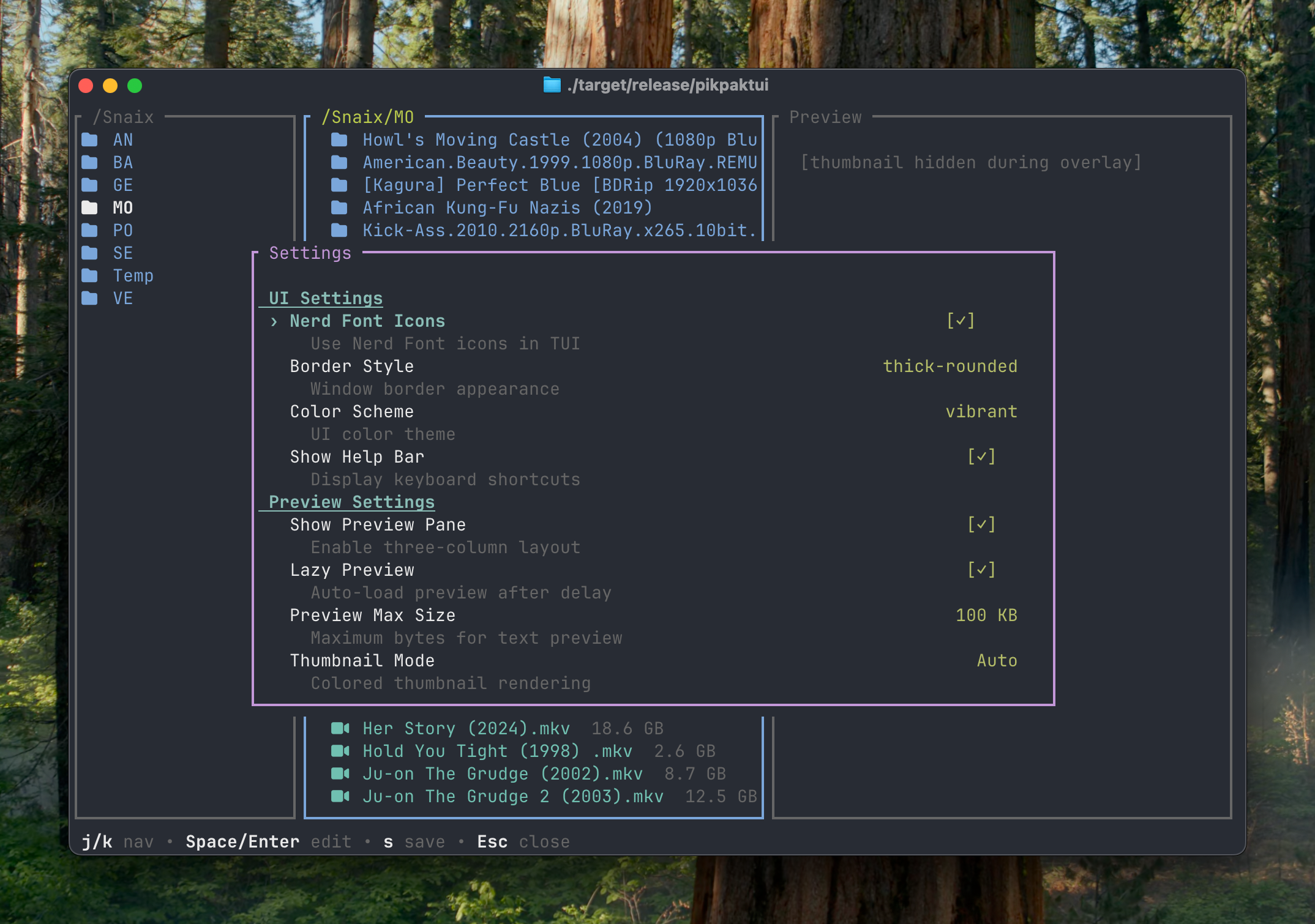
Settings
Press , to open settings. Changes apply immediately; press s to persist to config.toml.
| Key | Action |
|---|---|
j / k | Navigate items |
Space / Enter | Edit / toggle selected item |
← / → | Cycle through options for multi-value settings |
s | Save changes to config.toml |
Esc | Discard unsaved changes and close |
Settings include: Nerd Font, border style, color scheme (with custom RGB editor), help bar, quota bar style, show preview, lazy preview, preview max size, thumbnail mode, image protocols, sort field, reverse order, move mode, CLI Nerd Font, player command, concurrent download jobs.
My Shares View
Press M to open your share history.
| Key | Action |
|---|---|
j / k | Navigate |
y | Copy share URL to clipboard |
d / x | Delete share (prompts confirmation) |
r | Refresh shares list |
l | Toggle log overlay |
Esc | Close |
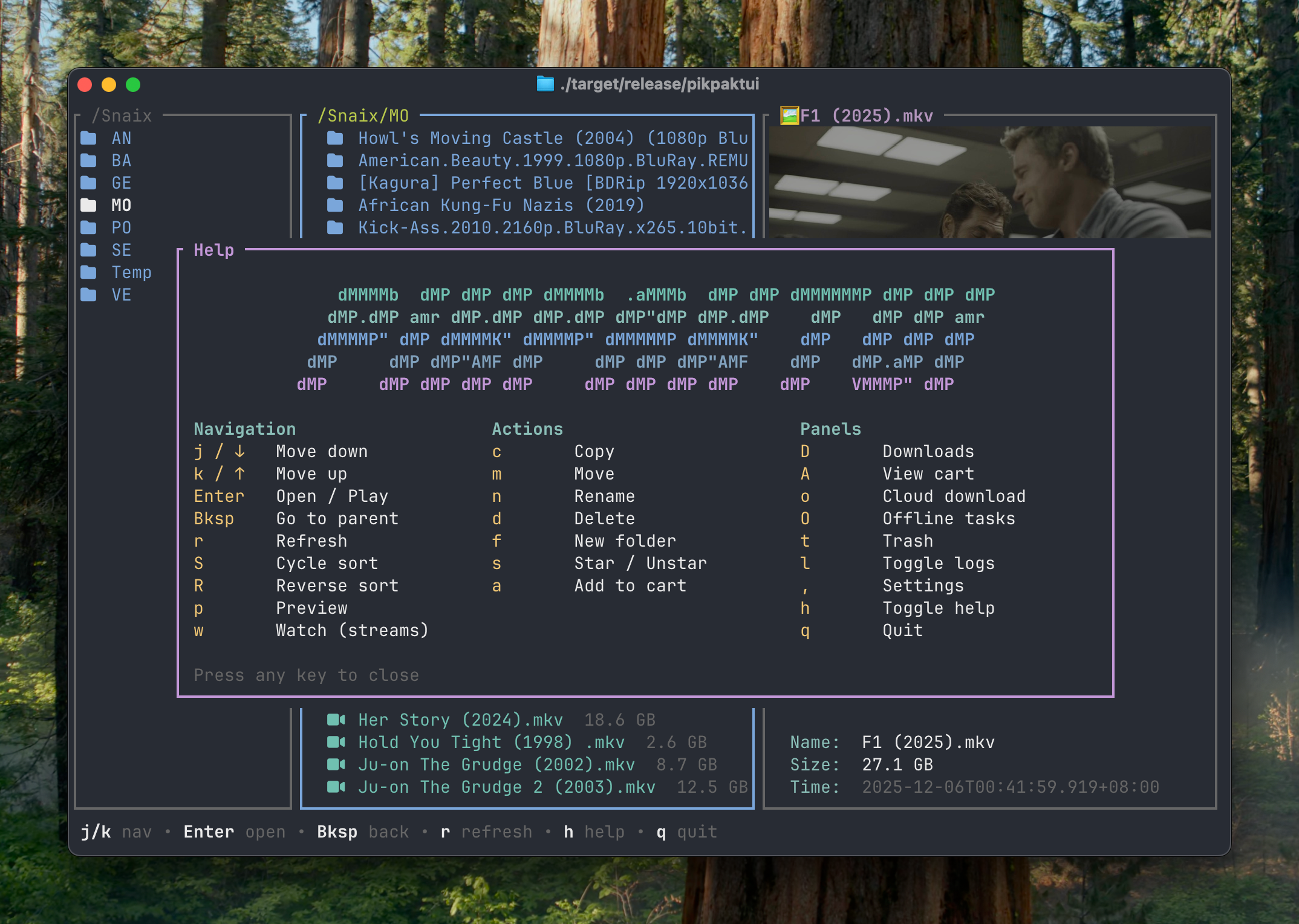
Help Sheet
Press h in the file browser to open the built-in help sheet. Press any key to close it.
Mouse Support
- Click — Select entry in parent or current pane
- Double-click — Open folder (current/parent pane) or show info popup (preview pane)
- Scroll wheel — Navigate entries, scroll preview, or scroll log overlay