
Getting Started
pikpaktui is a terminal client for PikPak cloud storage, offering both an interactive TUI and a full CLI with 27 subcommands. Written in pure Rust — no OpenSSL, no C dependencies.
Requirements
- A PikPak account (sign up)
- macOS (Intel or Apple Silicon), Linux (x86_64 or ARM64), Windows (x86_64 or ARM64), or FreeBSD
Installation
curl -fsSL https://app.snaix.homes/pikpaktui/install | bashbrew install Bengerthelorf/tap/pikpaktuicargo install pikpaktuigit clone https://github.com/Bengerthelorf/pikpaktui.git
cd pikpaktui
cargo build --release
# Binary at: ./target/release/pikpaktuiPre-built binaries are available for macOS (Intel & Apple Silicon), Linux (x86_64 & ARM64, including musl static), Windows (x86_64 & ARM64), and FreeBSD on the Releases page.
First Launch — TUI
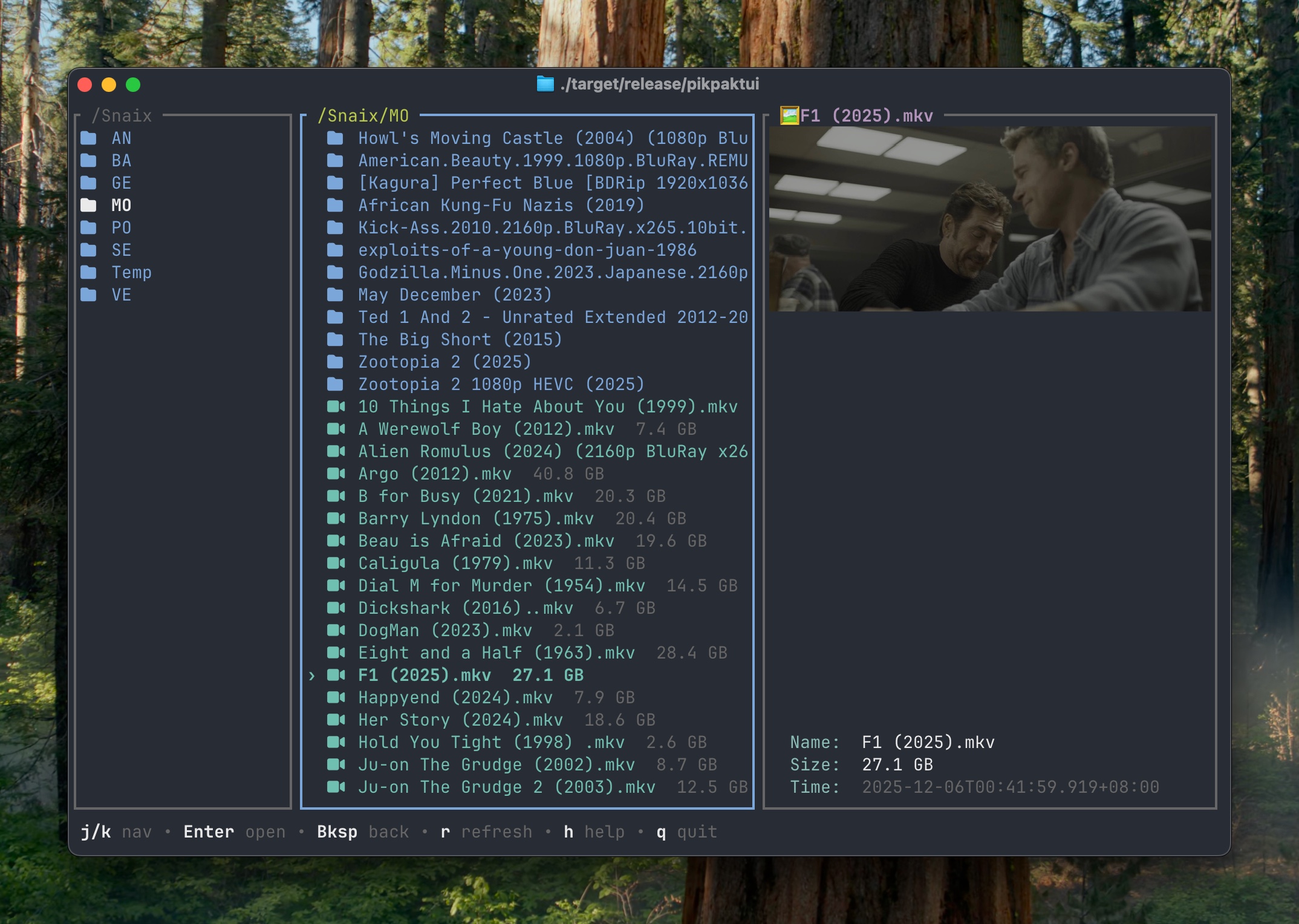
Run with no arguments to open the interactive TUI:
pikpaktuiOn first run, a login form appears. Enter your PikPak email and password. After a successful login, credentials are saved to ~/.config/pikpaktui/login.yaml and the session to ~/.config/pikpaktui/session.json — you won't need to log in again.
Quick keys to know
,— open Settingsh— show the full help sheetq— quit
Navigating the TUI
The TUI is a three-column Miller layout:
| Pane | Content |
|---|---|
| Left | Parent directory |
| Center | Current directory (active) |
| Right | Preview (thumbnail / text / folder listing) |
Basic navigation
| Key | Action |
|---|---|
j / k or ↑ / ↓ | Move cursor up/down |
Enter | Open folder or play video |
Backspace | Go to parent directory |
g / Home | Jump to top |
G / End | Jump to bottom |
Ctrl+U / Ctrl+D | Half-page scroll |
r | Refresh current directory |
: | Jump to a path by typing it |
File operations
| Key | Action |
|---|---|
m | Move (folder picker or text input) |
c | Copy |
n | Rename |
d | Delete (prompts: y → trash, p → permanent) |
f | New folder |
s | Star / unstar |
y | Copy direct download URL to clipboard |
Views & features
| Key | Action |
|---|---|
a | Toggle file in/out of cart |
A | Open cart view (batch download/move/copy) |
u | Upload a local file to current folder |
w | Stream video — opens quality picker |
o | Offline download (enter URL or magnet) |
O | Offline tasks view |
D | Downloads view |
t | Trash view |
M | My shares view |
Space | File/folder info popup |
p | Text preview or fetch preview content |
l | Toggle log overlay |
See the TUI Guide for the complete keybinding reference.
CLI Quick Start
All CLI subcommands require a valid session (run pikpaktui first to log in, or use pikpaktui login).
# List files
pikpaktui ls /
pikpaktui ls -l "/My Pack"        # long format with size and date
pikpaktui ls --tree --depth=2 /   # recursive tree view

# File operations
pikpaktui mv "/My Pack/file.txt" /Archive
pikpaktui cp "/My Pack/video.mp4" /Backup
pikpaktui rename "/My Pack/old.txt" new.txt
pikpaktui rm "/My Pack/file.txt"           # moves to trash
pikpaktui rm -rf "/My Pack/old-folder"    # permanently deletes

# Transfer
pikpaktui download "/My Pack/video.mp4"
pikpaktui download -j4 -t ./videos/ /a.mp4 /b.mp4  # 4 concurrent
pikpaktui upload ./notes.txt "/My Pack"

# Offline download
pikpaktui offline "magnet:?xt=urn:btih:..."
pikpaktui offline --to "/Downloads" "https://example.com/file.zip"
Dry run
All commands that modify data accept -n / --dry-run — resolves paths and shows what would happen, without making any changes.
Login via CLI
You can also log in non-interactively (useful for scripts or CI):
pikpaktui login -u you@example.com -p yourpassword

# Or via environment variables:
PIKPAK_USER=you@example.com PIKPAK_PASS=yourpassword pikpaktui login
Environment Variables
| Variable | Description |
|---|---|
PIKPAK_USER | Account email (used by login command) |
PIKPAK_PASS | Account password (used by login command) |
PIKPAK_DRIVE_BASE_URL | Override PikPak drive API endpoint |
PIKPAK_AUTH_BASE_URL | Override PikPak auth API endpoint |
PIKPAK_CLIENT_ID | Override OAuth client ID |
PIKPAK_CLIENT_SECRET | Override OAuth client secret |
PIKPAK_CAPTCHA_TOKEN | Provide CAPTCHA token if login is challenged |
Next Steps
- TUI Guide — All keybindings for every view
- Configuration — Customize colors, fonts, player, and more
- CLI Commands — Full reference for all 27 subcommands
- Shell Completions — Tab-complete cloud paths in zsh